
Schedule a match
A match is not just another practice block. When you schedule it as Match Play, CoachEye treats it as competition-oriented work: separate from drills-only days, easier to scan on your timeline, and easier to pair with recovery and analysis later. Use this guide when you are starting from Today and want one focused flow from New Session through saving the entry.
Why use Match Play
Matches load the body and mind differently than drills or fitness sessions. Putting them on the calendar as Match Play keeps your week honest: coaches and parents see contest days clearly, and you avoid mixing match day with generic “tennis practice” labels that are harder to filter later.
Start from Today
- Open To Do in the footer, then the Today tab so you see the current day.
- On Add new session, tap + to open New Session (same entry as in Add a session from Today).
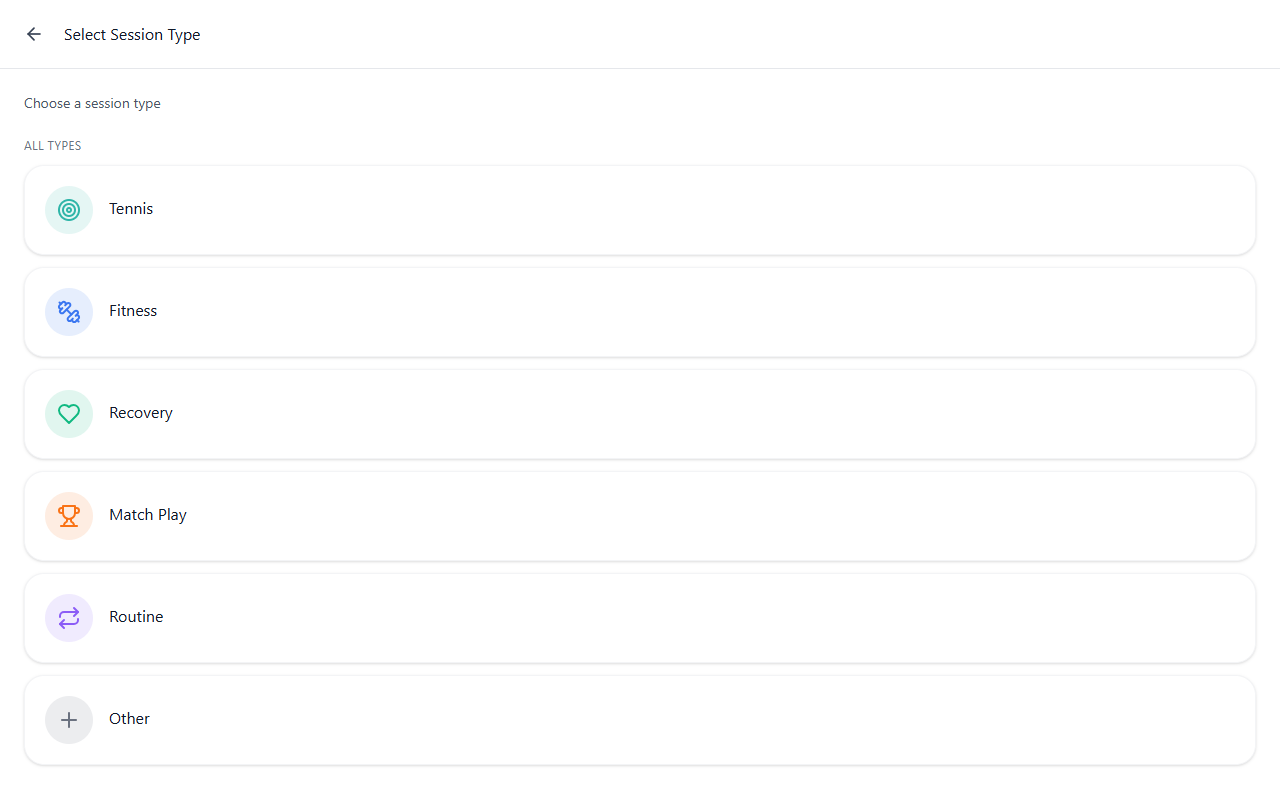
Choose Match Play
Tap Match Play. Choosing Match Play usually opens Select Location next so you pick where the match fits before finishing the rest of the form—matching how tennis match logistics often start with the court.
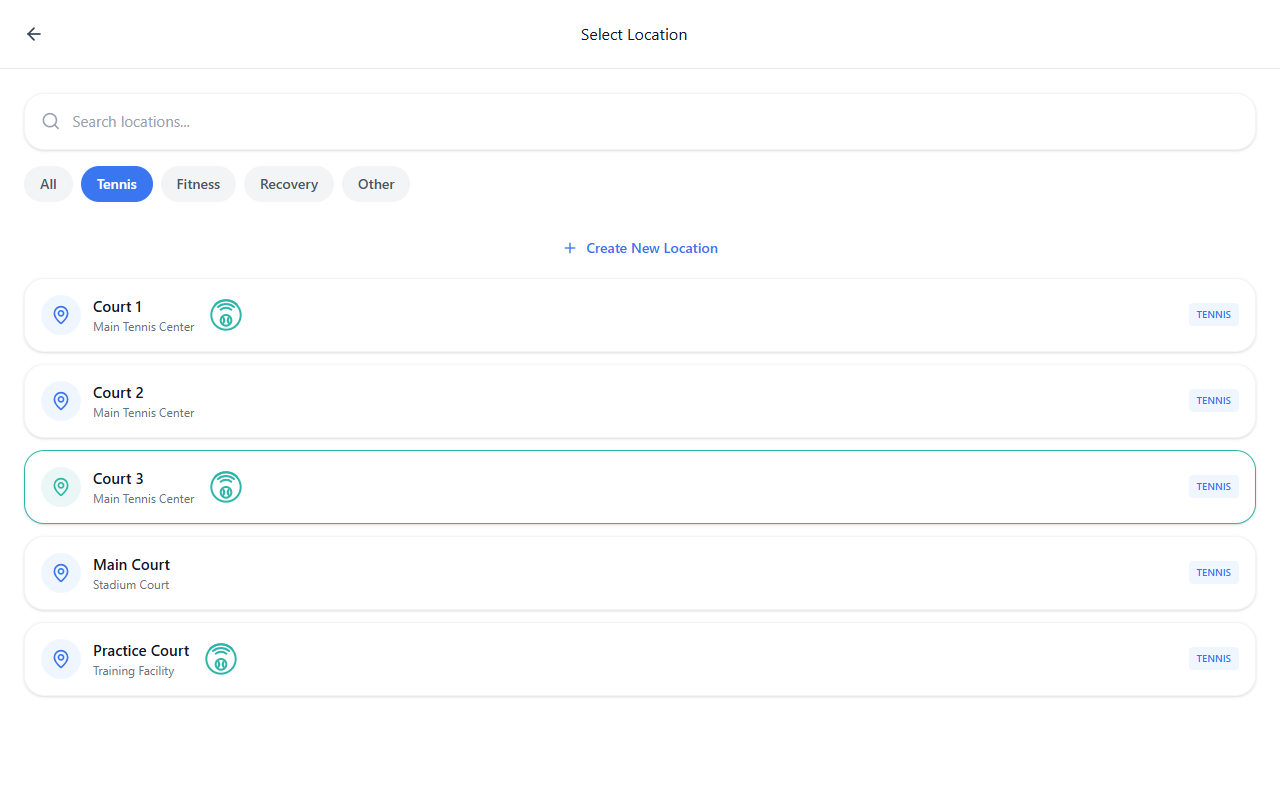
Pick a court or add a new location
Use Select Location to browse saved venues. Filter by category tabs (for example Tennis) when your club separates courts, surfaces, or buildings.
If the place is not listed yet, tap Create New Location and complete the short location workflow (address, court details, optional Smart Court setup).
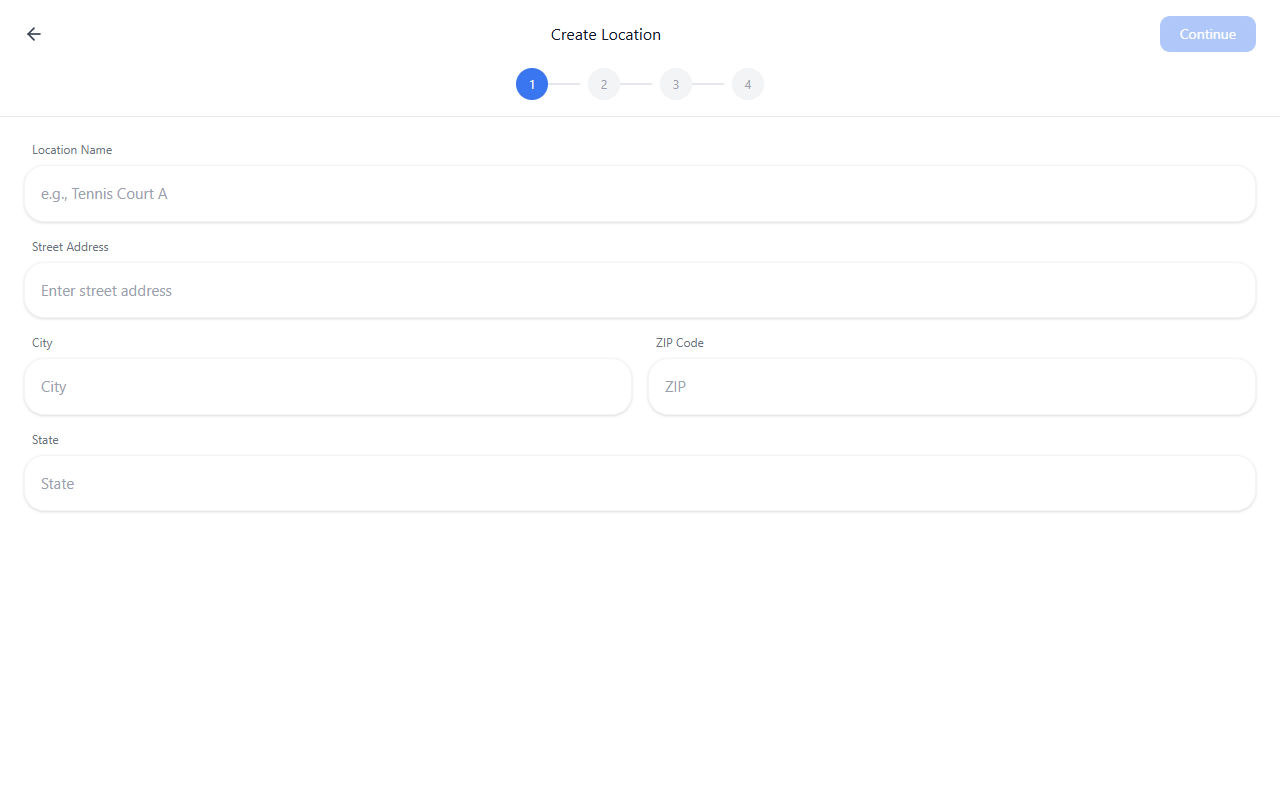
Close the location flows when you are done (back arrow from Create Location, then from Select Location) to return to the New Session summary. Broader venue and weekly-location patterns also appear in Development Plans and Logbook when events span multiple days.
Complete date, time, and session summary
Back on New Session, confirm Match Play is shown under Session Type, then review Location, Date and time, duration, and repeat settings as needed.
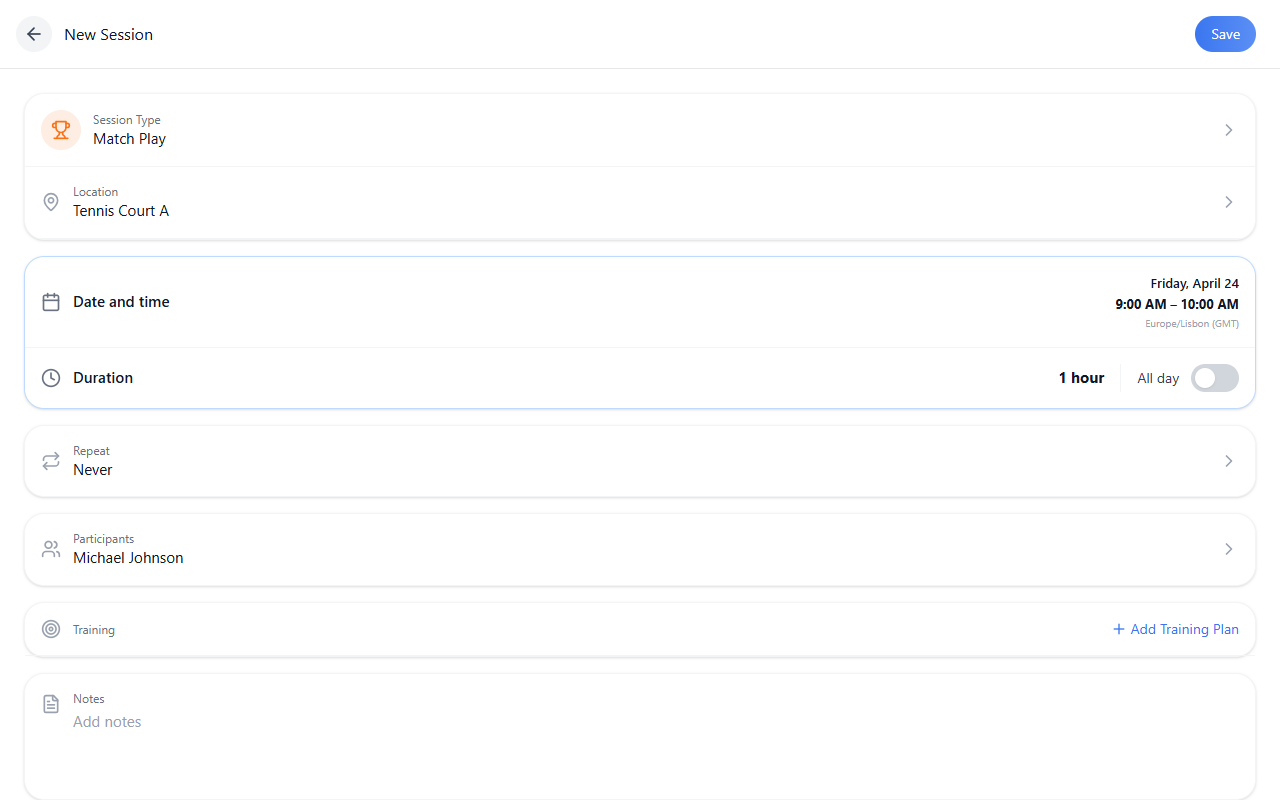
Scroll to expose Participants, optional training plan actions, and Notes.
Tap Participants to add people from your squad when that step is available in your build. Tap Add Training Plan to pull drills or templates from Training Hub—for structured template lists see Training sessions and Drills Collection via the hub. If your organization limits editing, some rows may be view-only.
Save
Tap Save. The session appears on Today as a match-oriented block so you can execute, adjust reminders, or open Logbook for history.
Related guides
- Today — daily timeline, calendar, reminders
- Add a session from Today — all session types and the shared New Session pattern
- Schedule a Training Session — Tennis / Routine and filling the session with drills from Training Hub
- Development Plans — weekly templates and dragging activities with locations
- Logbook — events, recurrence, long-term history
- Training Hub — drills and routines when you attach a plan
- Usage scenarios — how planning, execution, and review connect