
Schedule a Training Session
A training session in CoachEye is a planned block where the work is defined by drills, routines, or saved templates—not only a time slot. This guide starts from Today (To Do) and pulls together what the docs already describe: choosing the right session type, linking Training Hub content, and saving the entry so it shows on your timeline. For the full New Session tour of all types, see Add a session from Today. For contest days, see Schedule a match.
Why fill the session with drills
Training improves faster when exercises are chosen on purpose, not only to fill time. The Drills Collection guide puts it clearly: start from the skill or pattern you want to work on, then pick drills that support that goal. Training sessions adds another layer: you can assemble session templates—ordered drills, focus, duration—so the same structure is easy to reuse. Scheduling from Today is how those library pieces land on the day you actually train.
Start from Today
- Open To Do in the footer, then the Today tab.
- On Add new session, tap + to open New Session (same entry as Add a session from Today).
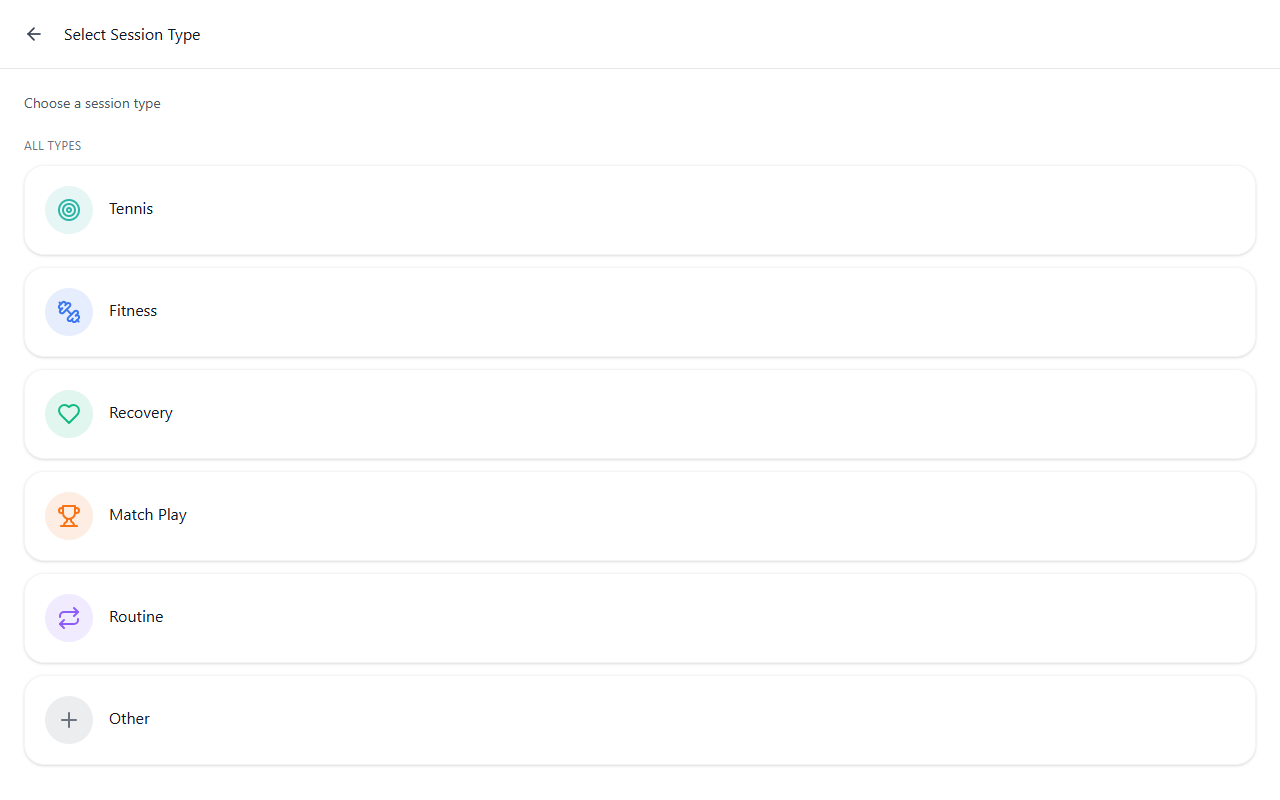
Two ways to schedule training content
The Add a session from Today walkthrough defines six session types. For a training session whose content is built from drills and routines, two paths are the most relevant:
A. Tennis (on-court practice) + Add Training Plan
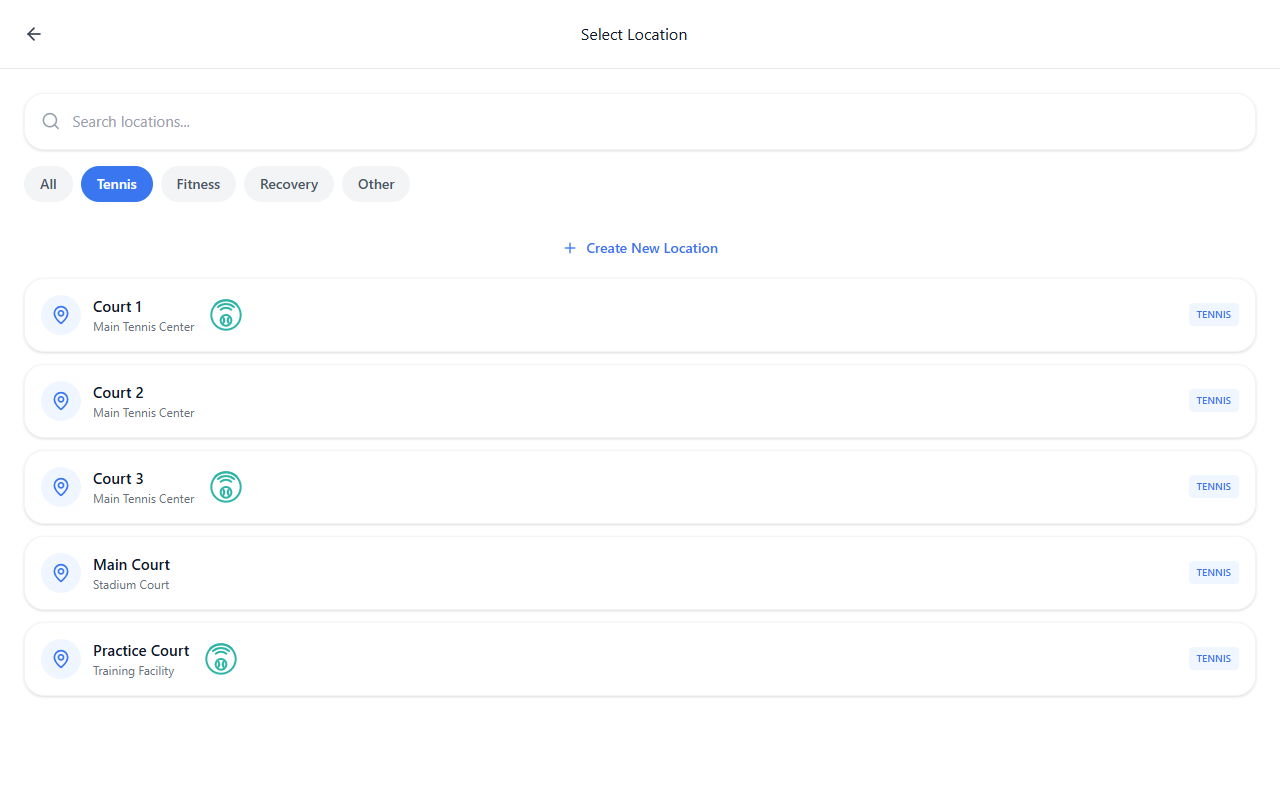
Choose Tennis for tennis-specific practice—your main court block for the day. After location and schedule details, the New Session form lets you attach work from the library using Add Training Plan, which connects to Training Hub so you can add drills or components (see Training Hub overview and Drills Collection for browsing categories and thumbnails).
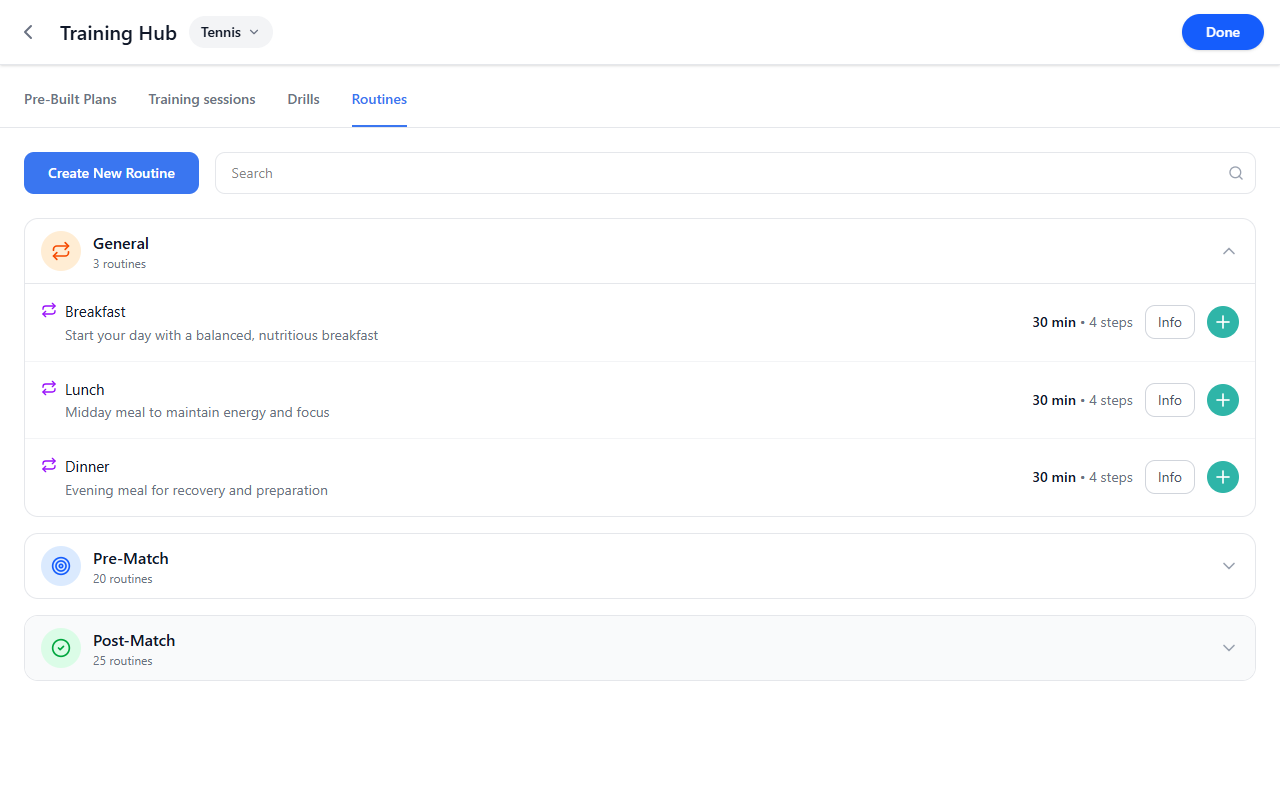
B. Routine (bundles from Training Hub)
Choose Routine when you want repeatable bundles from Training Hub—for example General, Pre-Match, or Post-Match groups—then follow placement and time as the app guides you.
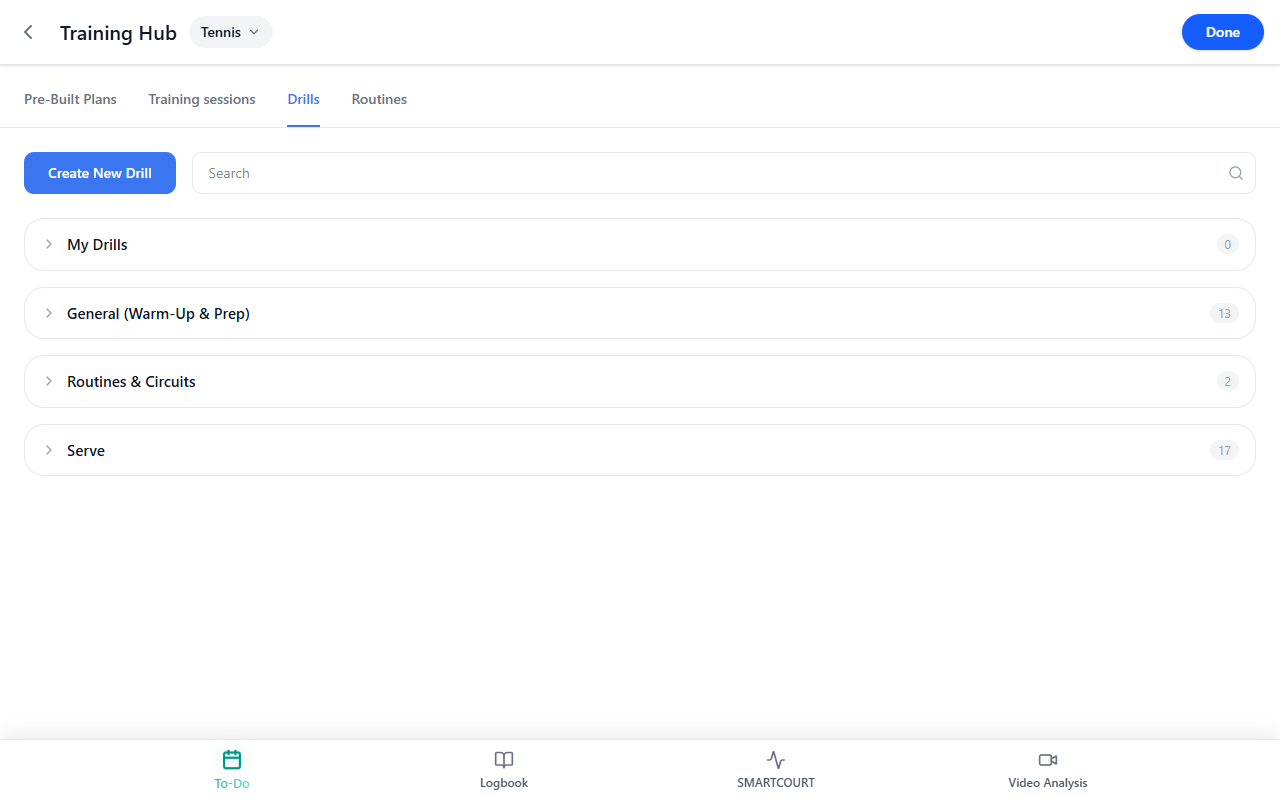
Fill the session with drills (focus)
Use this checklist so the session is populated, not empty:
- Browse or search drills — The Drills Collection page explains the Drills tab: categories, drill cards, My Drills, and Create New Drill. That is the primary drill library inside Training Hub.
- Author or extend content — If nothing in the library fits, Create New Drill walks through the full wizard (Basics → Review, optional Combined Drill / circuit).
- Reuse multi-drill templates — Training sessions describes session templates in the Training sessions tab: ordered drills, Main Focus, Key Elements, and saving a repeatable template—useful when the same block should appear on the calendar again.
- Keep hub content in mind during planning — Training Hub ties discovery, Saved items, and use in flows such as Today, Add a session from Today, and Development Plans.
Location, time, and save
After content and session type fit your plan, finish Select Location when the flow asks (see Add a session from Today — *Pick a location*). Confirm date and time, then Save. The row appears on Today; longer-range patterns may also relate to Development Plans and history to Logbook.
Related guides
- Today — daily timeline and calendar
- Add a session from Today — complete New Session walkthrough for all types
- Schedule a match — Match Play when the day is competition-oriented
- Training Hub — library, search, saved content
- Drills Collection — choosing drills by goal and category
- Training sessions — session templates with multiple drills
- Create New Drill — authoring new exercises
- Development Plans — weekly planning and locations
- Logbook — history and events
- Usage scenarios — end-to-end flows