
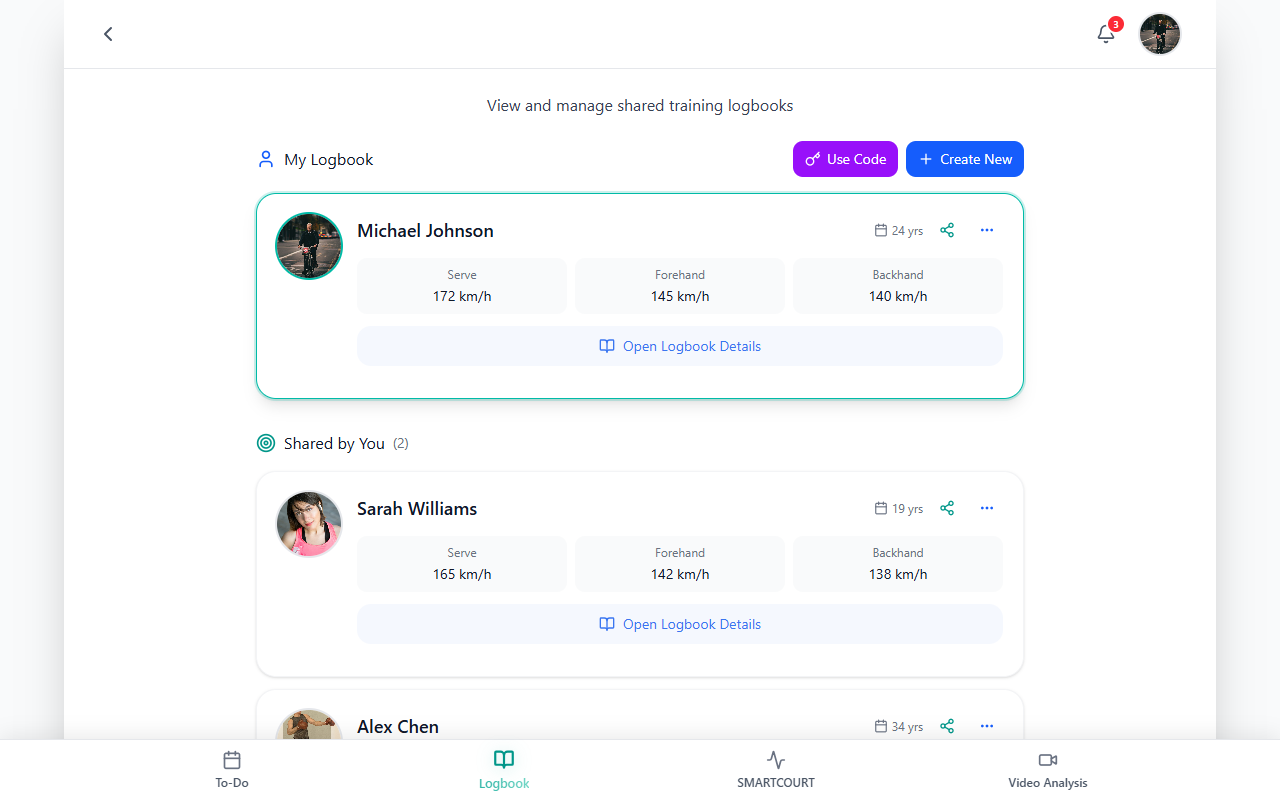
View and manage shared training logbooks
Use this screen when you work with more than one training logbook on your account—or when someone shares a journal with you. It is the place to see every logbook you own or can access, switch which one is active, send or redeem an invite code, and create another player journal when your workflow needs a separate history.
Daily training—calendar, sessions, and analytics—still lives under Logbook. Open this list only when you need to change context, invite someone, join with a code, or add a new logbook.
Why it helps
Coaches and families often juggle several athletes or shared visibility into one journal. A single list keeps that work organized: you always know which logbook is active, who shared what, and where to grant access without hunting through settings. Picking the right journal before you return to Logbook means your history, plans, and reviews stay tied to the correct person.
At a glance
- Open the list from Logbook using the large selector at the top (avatar, name, and chevron)—not from the day-to-day logbook home alone.
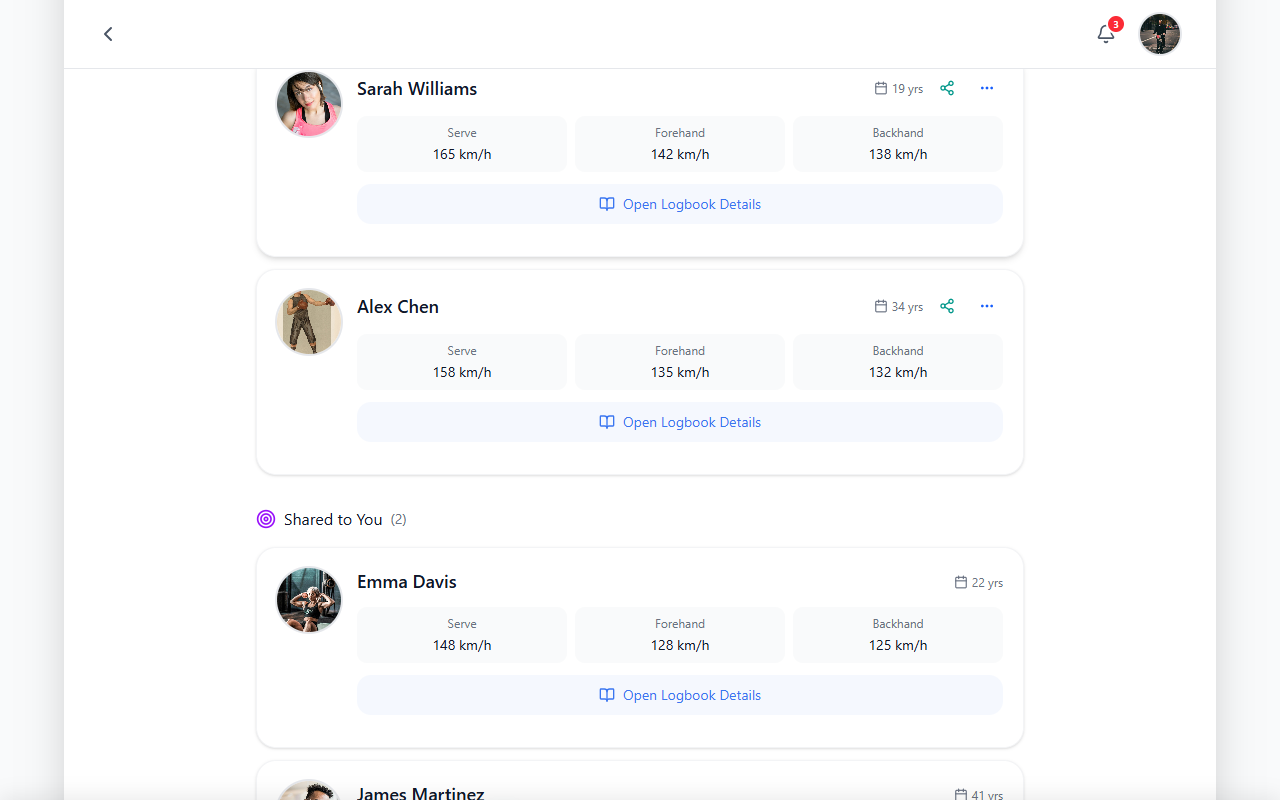
- Browse My Logbook, Shared by You, and Shared to You (shared sections often show counts in the header).
- Tap a card to make that logbook active and go back to the logbook home.
- Use Share on a card (when shown) to generate a short-lived invite code for someone you name.
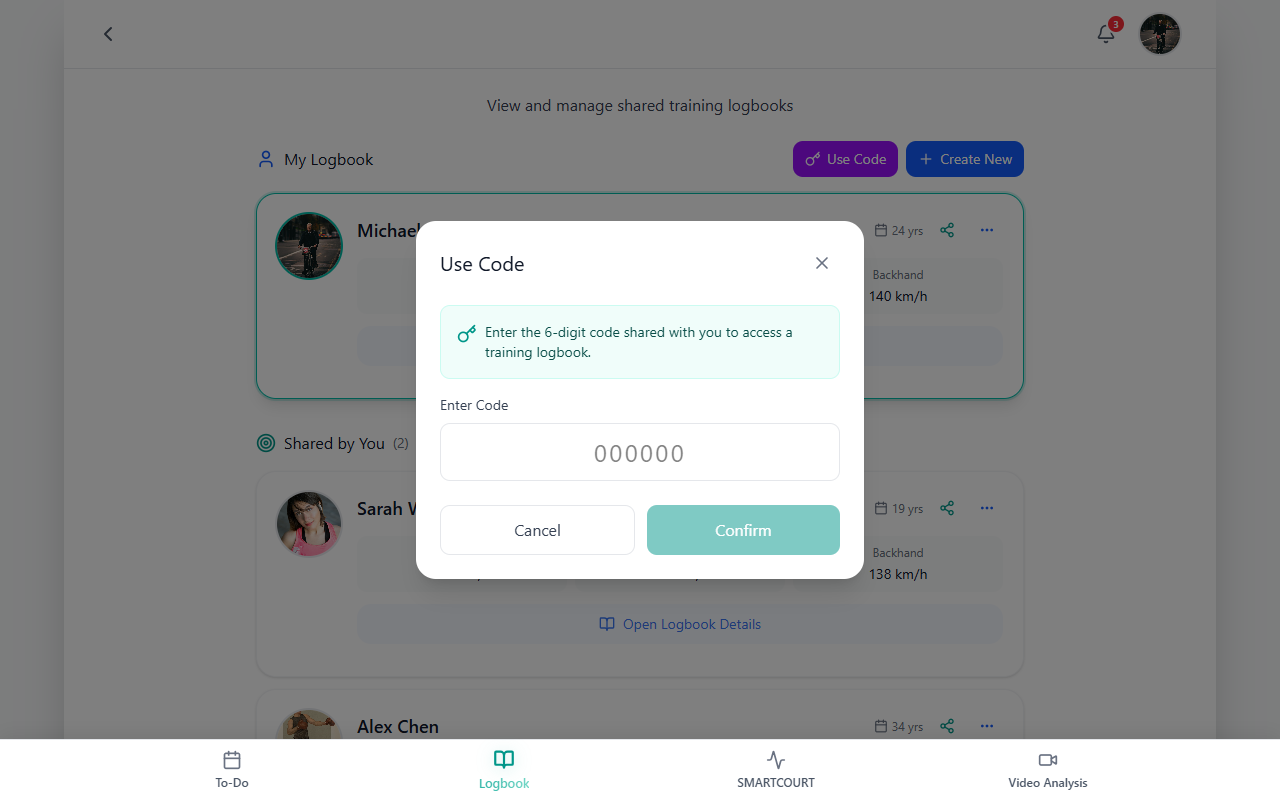
- Use Use Code to type a six-digit code you received.
- Use Create New to add another logbook with profile details and a photo.
- Use View / Edit or Open Logbook Details on a card (when available) to read or adjust profile-style fields.
Open the list
- Tap Logbook in the footer.
- On the logbook home, tap the selector row at the top (avatar, name, chevron).
- You should see the title View and manage shared training logbooks and the three sections below it.
Use the back control in the app header to leave the list when you are done.
Switch the active logbook
Tap the main area of the card for the journal you want. The app returns you to Logbook with that logbook selected so upcoming work—sessions, events, and reviews—applies to the right athlete.
If you use more than one device, the active logbook usually follows your account; details can vary by app version.
Share a logbook
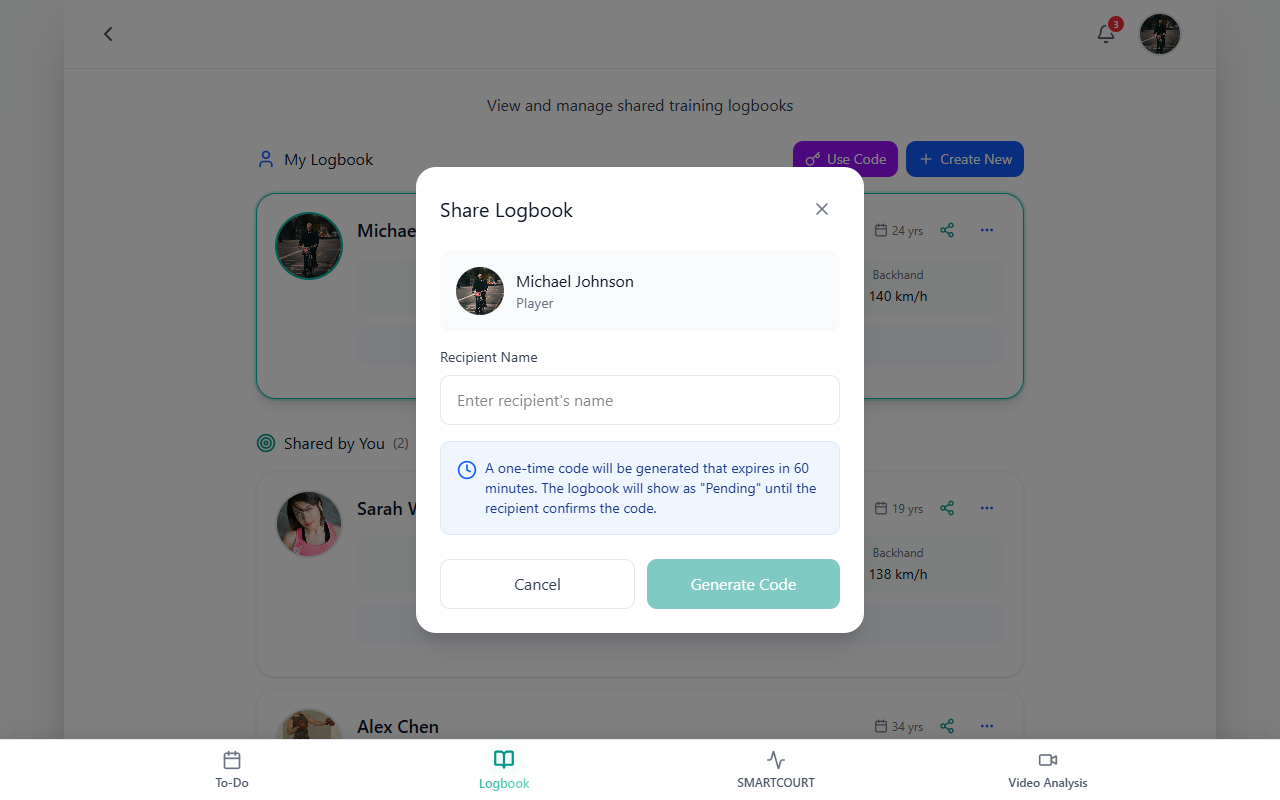
When Share appears on a card, you can invite someone without sharing your login.
- Tap Share.
- Enter the recipient’s name (so you can recognize the invite later).
- Read the note about the code: it is one-time and time-limited (often about an hour—use the timer and text on your screen).
- Tap Generate Code, then Copy Code or finish with Done so the other person can enter it with Use Code on their side.
Use a code
If an owner sent you a code:
- Tap Use Code next to My Logbook.
- Enter six digits (the field usually accepts digits only).
- Tap Confirm to add the logbook to Shared to You, or cancel to close.
If the code does not work: check that you have all six digits, that the code has not expired, and ask the owner for a new code if needed. On-screen messages explain whether the code was invalid, expired, or already used.
A working code is always one the owner generated with Share for that logbook.
Create a new logbook
Use Create New when you need another player journal under your account—for example a sibling or a new athlete you coach.
- Tap Create New beside Use Code.
- Add photo — tap the image area and choose a picture. You can remove and replace it until you are happy.
- Fill Name and Birth date (required in most cases). Birth date cannot be in the future.
- Optionally add Gender, Location, Club, and Bio if your form shows them.
- Tap Create when it is enabled. The new logbook appears in the list so you can select it.
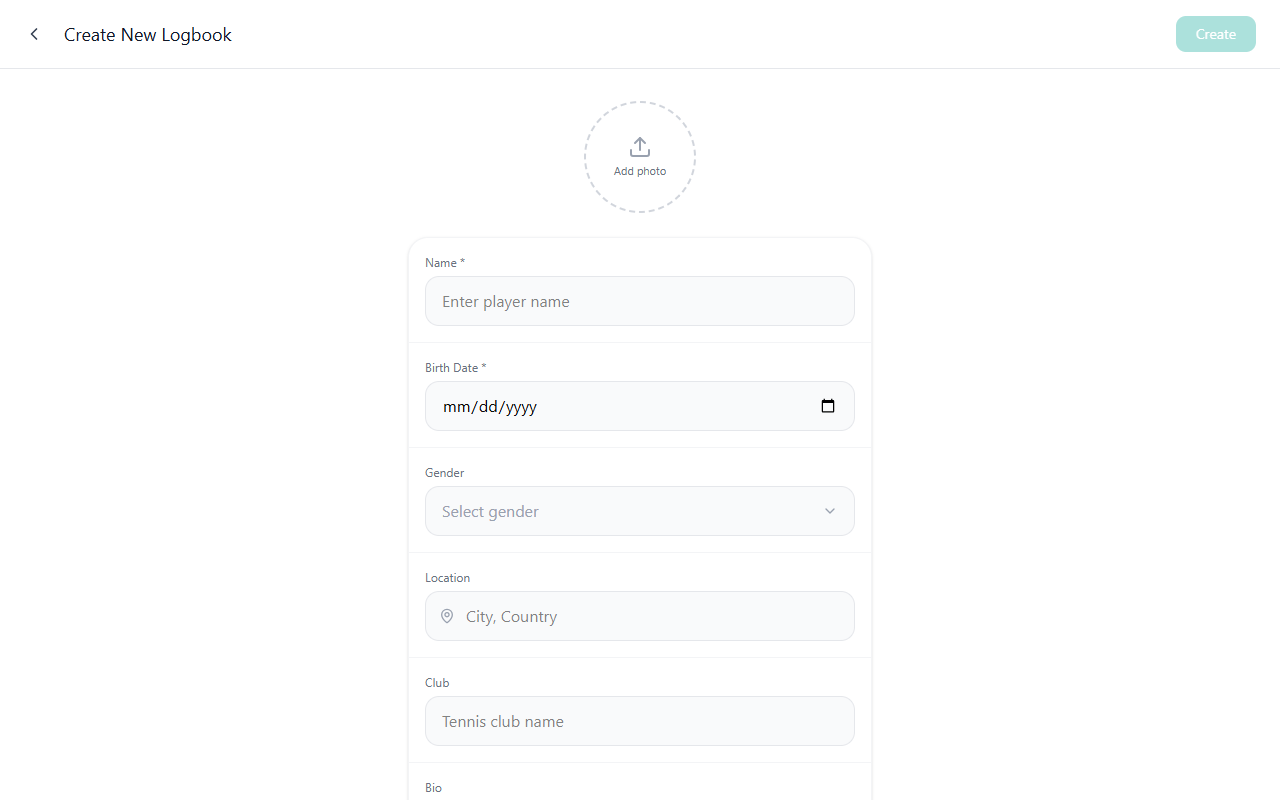
If Create stays disabled, complete the required fields—typically name, birth date, and photo—until the button turns on.
Logbook details and editing
On cards that support it, open the overflow menu for View / Edit Logbook to see Logbook Details: profile summary, age, club, location, bio, and skill-style readouts when shown. Switch to Edit to change what is allowed, then Save. Use the header back control to leave; behavior in edit mode follows what you see on screen (for example, discarding unsaved changes).
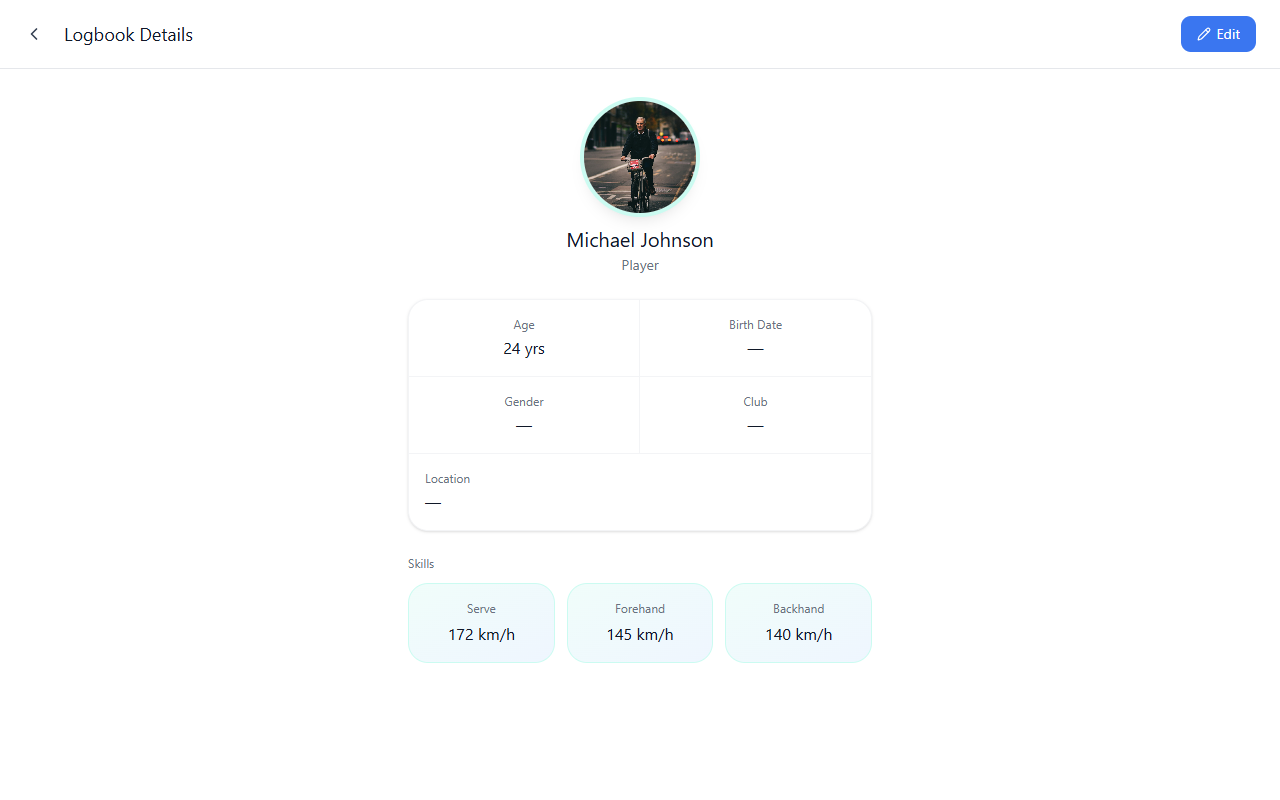
Open Logbook Details (book-style control) may appear on some cards for a quicker path to profile information. Not every card shows every action—it depends on whether you own the journal and which actions appear on that card.
What happens next
After you select a logbook, continue in Logbook for the calendar, session feed, and training context. After you share or join with a code, the other person should see the journal under Shared to You or you under Shared by You, depending on direction. New logbooks you create show up in the list immediately so you can tap them to work.
Tips
- This screen is for choosing and managing journals, not for logging today’s session—use Logbook for day-to-day training.
- Shared to You cards may offer fewer actions than journals you own; that is expected.
- Sharing and expiry rules can differ by club or account; follow the text shown in your app.
Related guides
- For account setup and switching logbooks in context, open Quick start.
- For what a logbook is in CoachEye, open Core concepts.
- For calendar, events, and session history after you pick a journal, open Logbook.
- For navigation across the main areas, open Interface overview.
- For terms used across the product, see Core concepts.